
If you’re struggling to install Family Tree Maker on your computer, you’re not alone. Many users across the USA face installation errors due to system compatibility, security settings, or corrupted files. The good news? Most of these issues are easy to fix with the right steps.
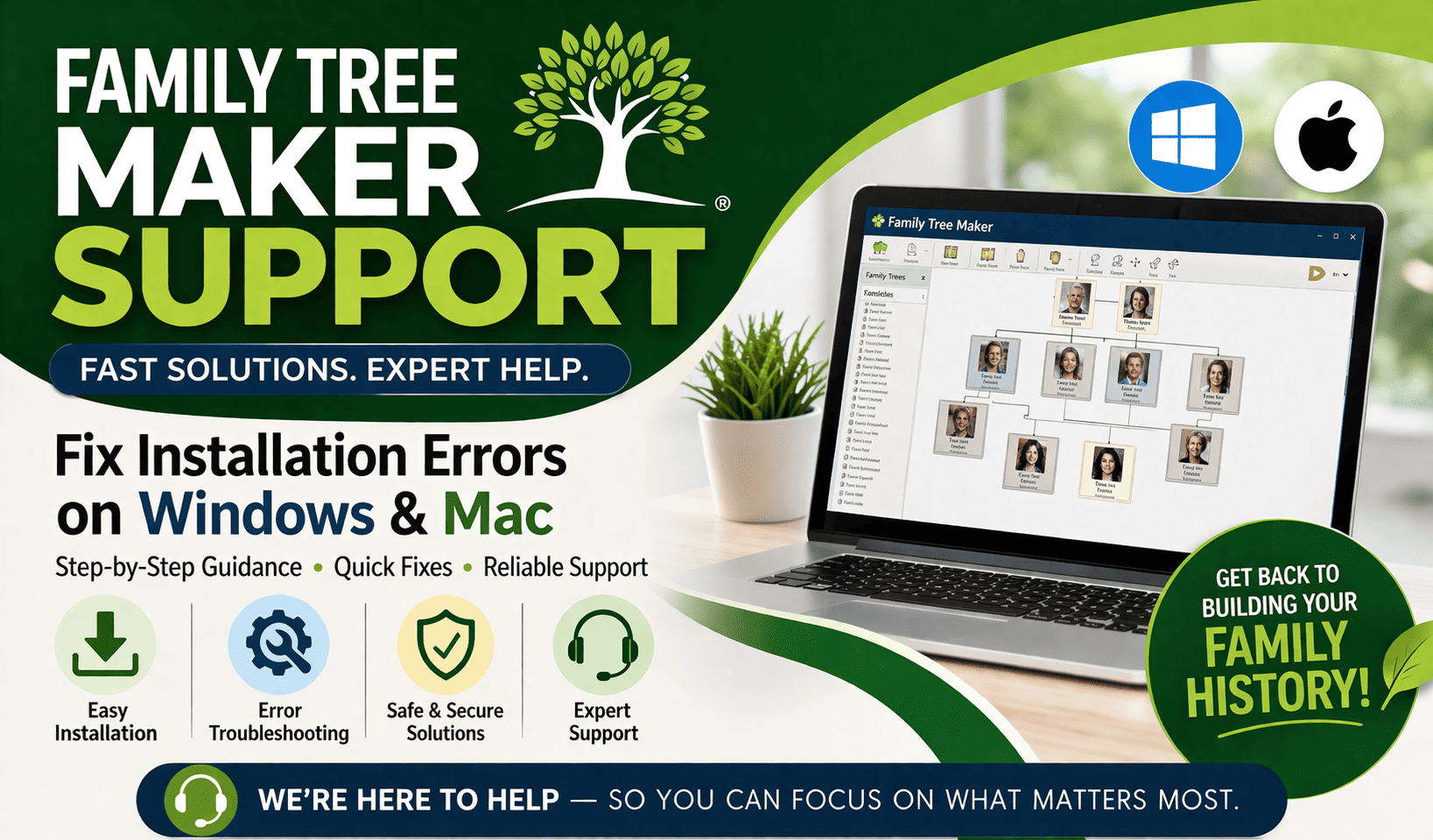
In this complete guide, we’ll walk you through how to fix Family Tree Maker installation errors on both Windows and Mac, so you can get back to building your family tree without stress.
Common Causes of Installation Errors
Before jumping into fixes, it’s important to understand why installation issues happen:
- Incompatible operating system
- Corrupted download file
- Antivirus or firewall blocking installation
- Missing system permissions
- Outdated software or drivers
- Insufficient disk space
Fix Family Tree Maker Installation Errors on Windows
1. Check System Requirements
Make sure your system meets the minimum requirements:
- Windows 10 or later
- At least 4GB RAM
- 2GB free disk space
If your system is outdated, installation may fail.
2. Run Installer as Administrator
Right-click on the installer file and select “Run as Administrator.”
This ensures the software gets proper permissions to install.
3. Disable Antivirus Temporarily
Sometimes antivirus software blocks installation files.
- Disable antivirus temporarily
- Install Family Tree Maker
- Re-enable antivirus after installation
4. Re-download the Installer
A corrupted file can cause errors.
- Delete the old installer
- Download a fresh copy from the official source
- Try installing again
5. Update Windows
Outdated systems often cause compatibility issues.
- Go to Settings > Update & Security
- Install all pending updates
- Restart your computer
6. Clear Temporary Files
Temporary files can interfere with installation.
- Press
Windows + R - Type
%temp% - Delete all files in the folder
Fix Family Tree Maker Installation Errors on Mac
1. Verify macOS Compatibility
Ensure your macOS version supports the software.
- macOS Monterey or later is recommended
2. Allow Installation from Identified Developers
If installation is blocked:
- Go to System Settings > Privacy & Security
- Click “Allow Anyway” for the app
3. Check Disk Space
Make sure you have enough storage available.
- At least 2GB free space required
4. Reinstall After Removing Old Files
If installation fails:
- Delete previous installation files
- Empty Trash
- Restart your Mac
- Reinstall the software
5. Disable Security Restrictions Temporarily
Mac security settings can block installations.
- Temporarily adjust Gatekeeper settings
- Install the software
- Restore settings after installation
Advanced Troubleshooting Tips
If basic fixes don’t work, try these:
- Install in Safe Mode
- Create a new user account and install there
- Check internet connection stability
- Ensure no background apps are interfering
When to Contact Support
If you’ve tried everything and still face issues, it’s time to reach out for expert help. Professional assistance can save time and prevent further complications.
You can contact:
- family tree maker support for general assistance
- family tree maker technical support for advanced troubleshooting
- family tree maker customer support for installation and licensing issues
Pro Tips to Avoid Installation Errors
- Always download from official sources
- Keep your OS updated
- Avoid interrupting the installation process
- Maintain enough disk space
- Regularly update drivers and system software
Conclusion
Installation errors in Family Tree Maker can be frustrating, but they’re usually easy to fix with the right approach. Whether you’re using Windows or Mac, following the steps above will resolve most issues quickly.
If problems persist, don’t hesitate to reach out to family tree maker support, family tree maker technical support, or family tree maker customer support for reliable help.
Start your genealogy journey without interruptions—fix the issue today and get back to building your family history! 🚀